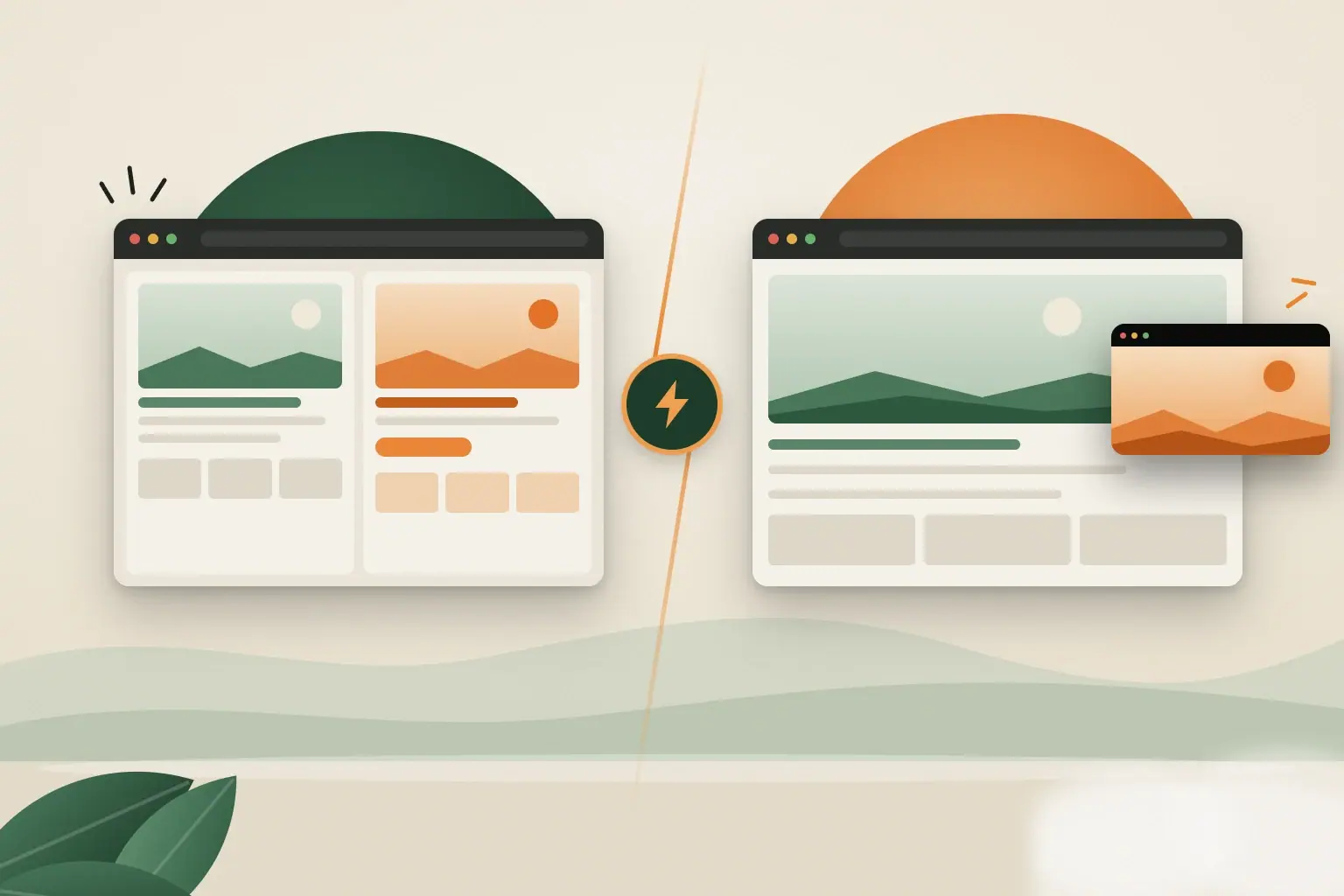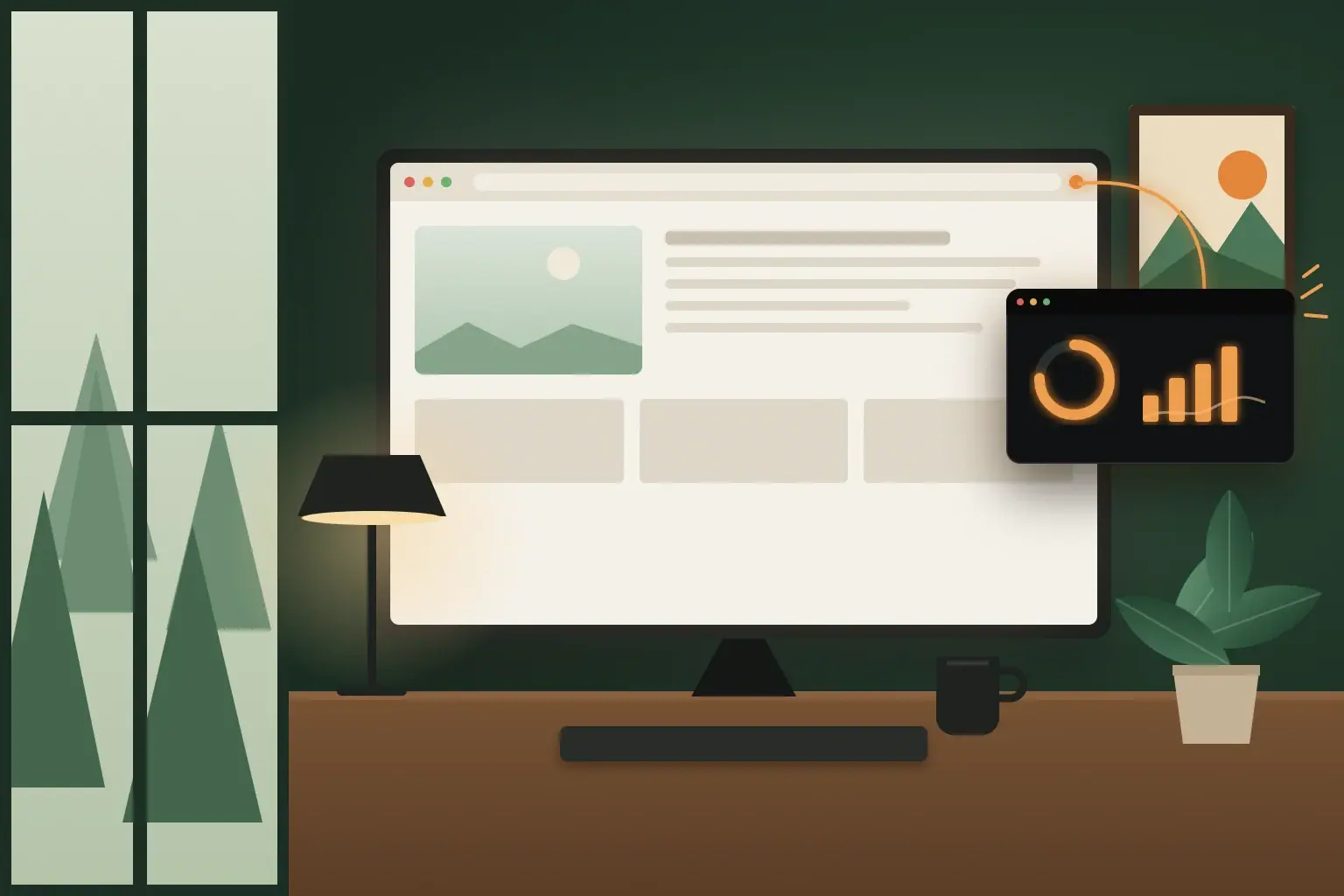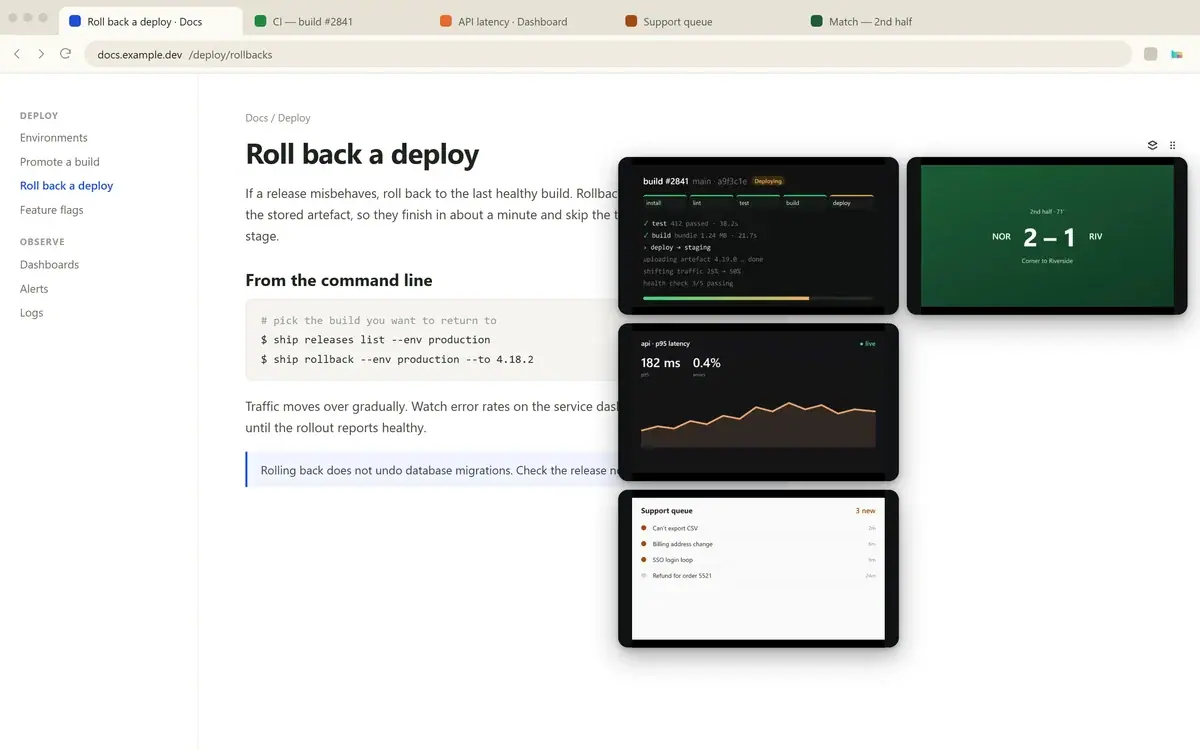
To view multiple tabs at once in Chrome, you can put two pages in Split View, arrange separate browser windows, or keep floating live previews over your current page. If you want to monitor several changing tabs while you work in another, cast them with Tabbies and open the stack into a grid.
Choose how you want to see the pages
- Chrome Split View keeps two websites in one window, side by side or stacked. Use it when you need to click, type, compare, or copy between both pages. Each page gets part of the window. Google's Split View guide explains how to add a tab and change the layout.
- Separate Chrome windows let you arrange pages wherever you want, including across two monitors. They remain fully interactive, but they use more screen space and can cover the page you are trying to work in.
- Floating live previews with Tabbies keep your main page at full size while the tabs you cast appear as small, live views. It works well for monitoring several pages; the views are for watching, not clicking or typing.
Set up a grid for several tabs
First install Tabbies from the Chrome Web Store. Then open each page you want to monitor and cast it:
- Open a build status page, dashboard, or support queue.
- Click the Tabbies extension icon and choose Cast this tab.
- Repeat for each page you want to keep in view.
- Open the stack into a grid, then switch to the page where you want to work.
The grid keeps the live views together while your working page remains in the background. The pages and values in this example are sample content.
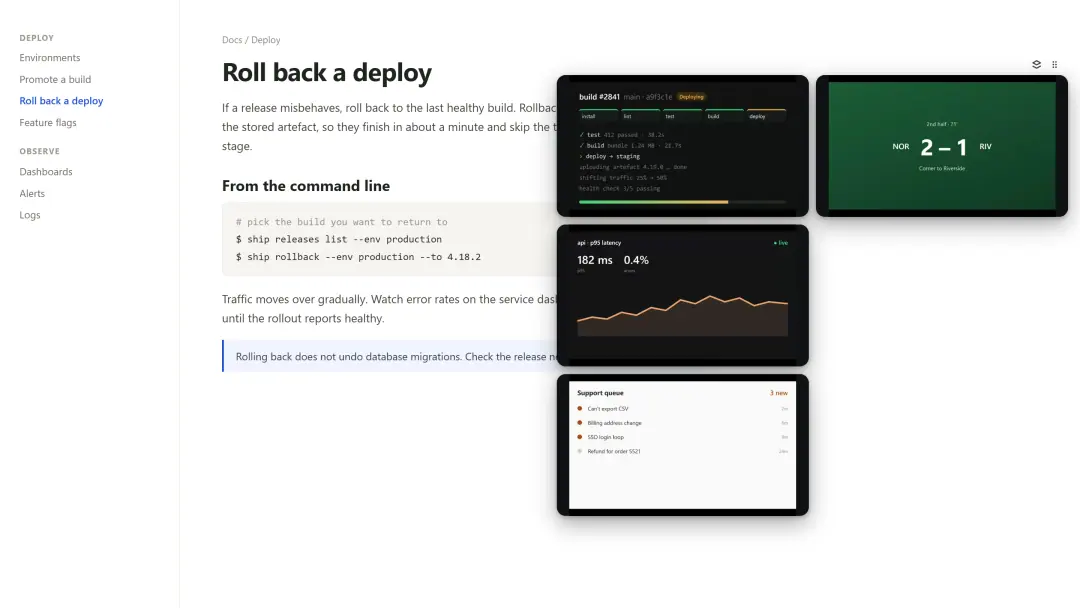
For a concrete monitoring setup, cast a build status, an error-rate or latency dashboard, and a support queue. Keep the build and dashboard near each other so a failed deploy and its effect are easy to notice. Add the queue if new tickets matter while the deploy runs. Switch to the original tab as soon as you need to read a small label or take action.
Keep the previews useful
Start with the pages that need attention now. A couple of previews are often easier to scan than a crowded grid; add another when the signal is clear at its displayed size. Drag the floating stack toward an edge to keep it away from the part of your page you use, and resize it if status text is hard to read.
The previews are not smaller interactive copies of the tabs. They are video-only, so they do not carry sound, and you cannot click or type inside them. Chrome blocks extension previews on its New Tab page and browser pages such as chrome://settings. If a page needs a response, open its original tab.
Which option fits your work?
Use Split View when two pages both need your input. Use separate windows when you want fully interactive pages arranged across a wide screen or multiple monitors. Use Tabbies when several pages are changing in the background and a glance is enough to keep up.
For a more detailed side-by-side comparison, read Chrome Split View Alternative: Floating Tabs with Tabbies. If you only need to keep one page visible as you work in another, see How to Keep One Chrome Tab Visible While Working in Another.
To see Tabbies in action, watch the demo, or add Tabbies to Chrome and cast the pages you check most often.