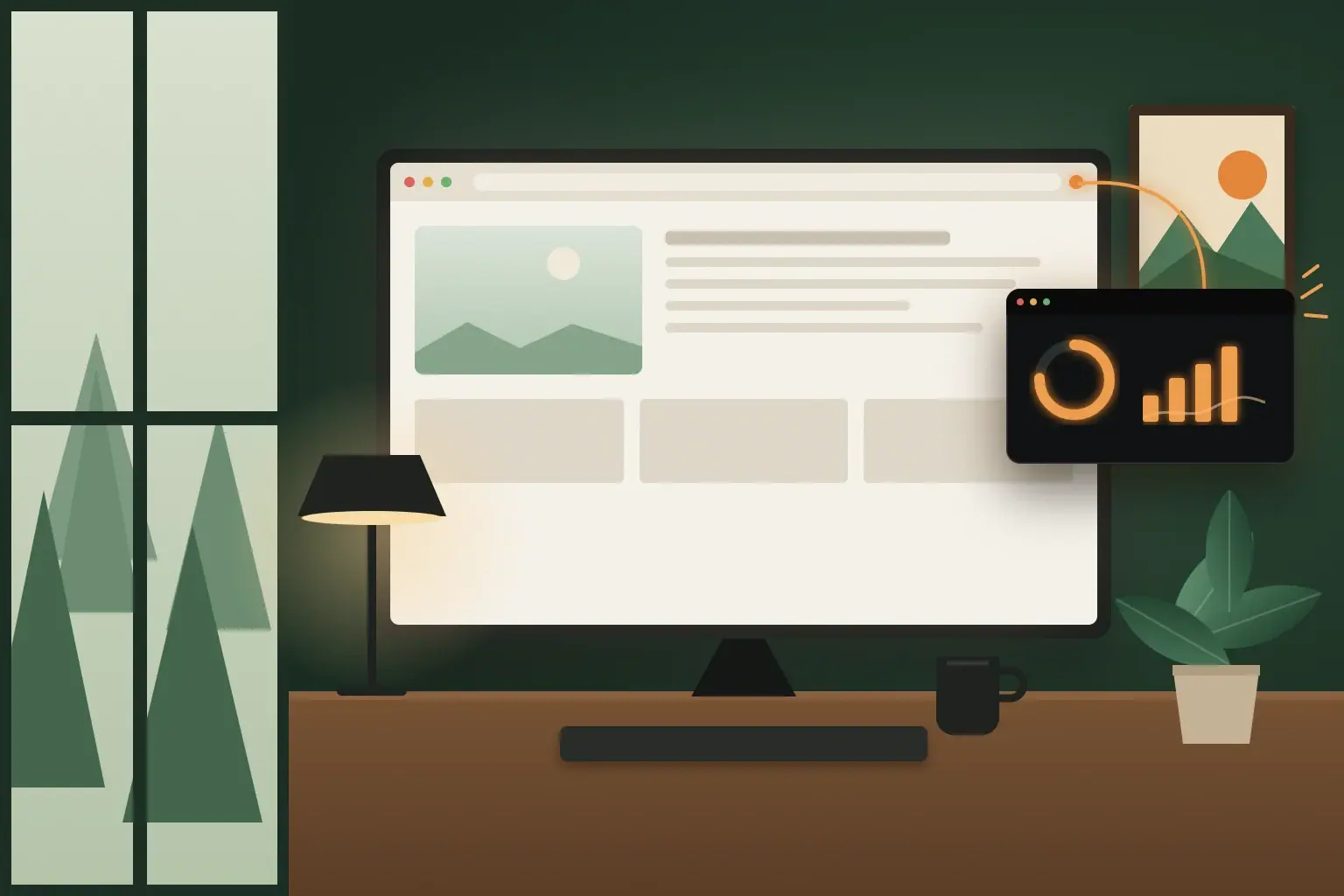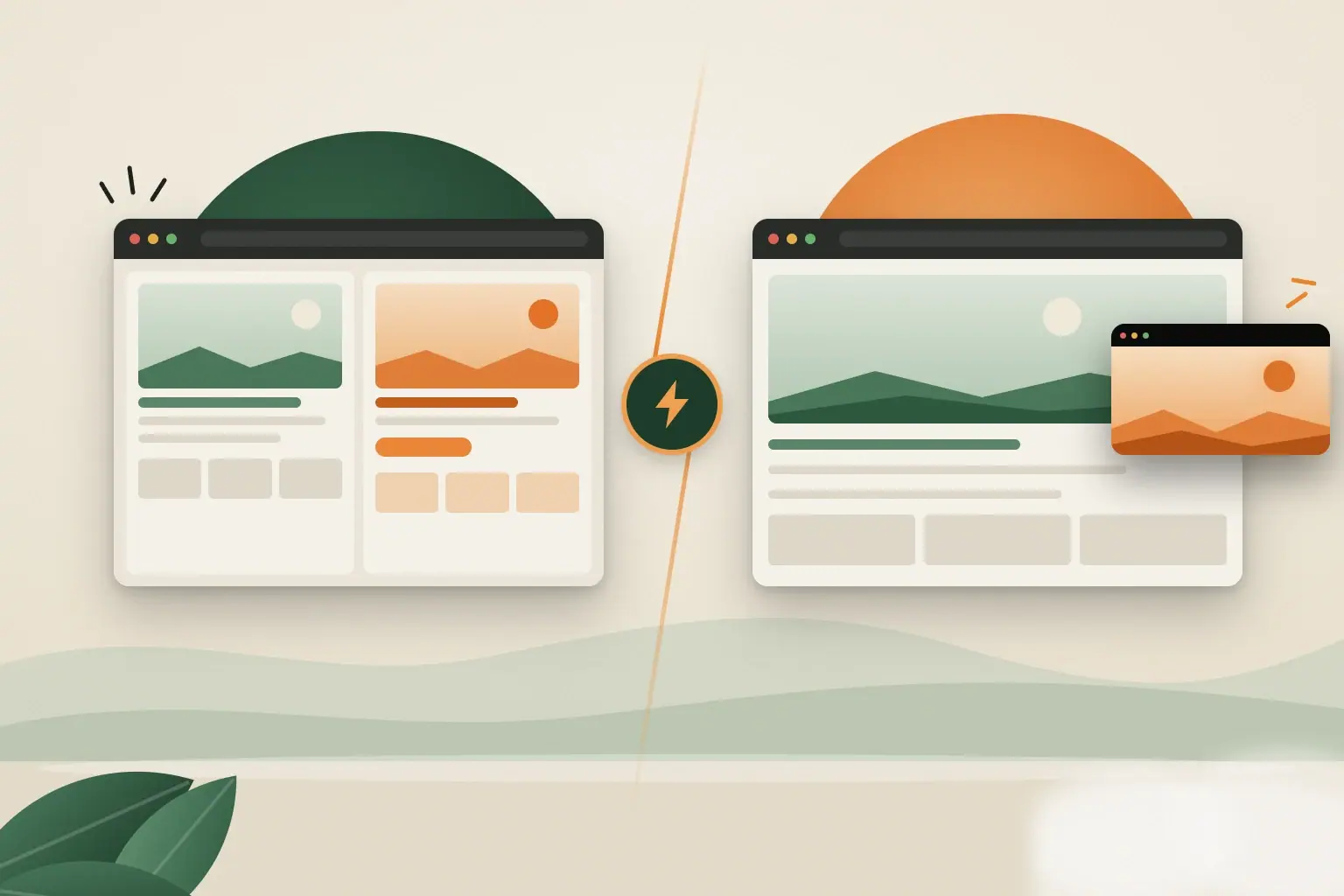
Both put a second tab in front of you, but they are built for different jobs. Chrome Split View is for working in two pages at once. Tab-in-tab with Tabbies is for when one page is your work and the other is something you only need to keep an eye on. Pick by what the second page asks of you: your hands, or just a glance.
Chrome Split View: two pages, both usable
Chrome Split View Two pages, half the window each. Both stay usable.
A Tabbies bubble Your page keeps the window. The build rides along, live.
Split View reached stable Chrome in version 145, in February 2026. It shows two websites in one window. One is active, but Google notes you can scroll the inactive one without switching to it. That makes it good for comparing two documents, copying details from one page into another, or following instructions while you fill in a form.
Open it by right-clicking a tab and choosing Add tab to new split view, or with Shift+Alt+N (Cmd+Option+N on a Mac). You can swap the two sides, switch between side-by-side and stacked, or split them apart again.
Where it falls short:
- Two pages, no more. It is a hard limit, and there's no way to save a pairing for later.
- Half the room for each page. On a laptop, half the window is often narrow enough that sites switch to their tablet or mobile layout. That's fine when you need both pages, and a steep price for one you only glance at.
Tabbies: one page to work in, one live view to watch
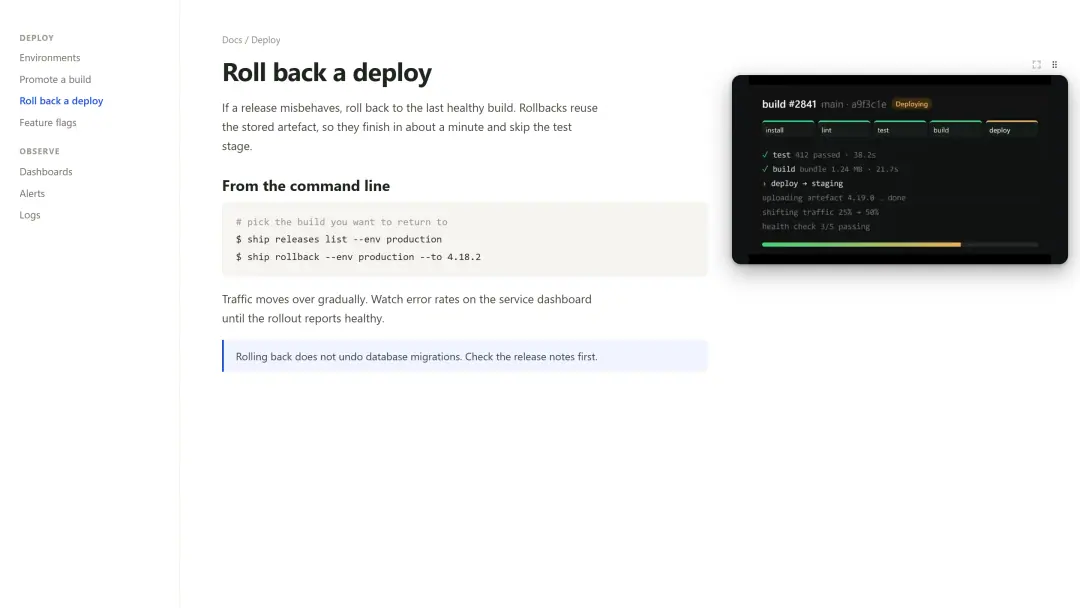
Tabbies is a free Chrome extension. Click Cast this tab on any page, and a live view of it follows you to your other pages in a small bubble. You drag it to either edge and resize it from the corner. Your main page keeps almost the whole window.
That trade is what makes it good for pages that change while you're busy: a deploy, an error-rate chart, a ticket queue, a live score. In my own use, the bubble's job is to answer "has anything happened?" A progress bar filling, a status turning red, a line on a chart jumping are all easy to catch at bubble size. When something has happened, that is the moment to switch tabs, and it's the only switch you make.
Tabbies does a few things Split View can't:
- More than two. Cast several tabs and they stack like cards, or open into a grid.
- Any page, not just video. Chrome's own picture-in-picture only takes video, and Document Picture-in-Picture only works on sites that build it in. Tabbies works on ordinary web pages.
- No setup per use. One click, with no screen-share picker and no "Sharing this tab" bar.
It is also light. Each bubble is encoded at the size it's shown, which in the launch tests meant about 1.5 ms of work per frame, and nothing leaves your computer. There is no server, no account and no analytics, and the code is open source.
What it won't do: the bubble is a live view, not a second copy of the site, so you can't click or type in it. It has no sound, and Chrome doesn't allow it on the New Tab page or on chrome:// pages.
A build finishing in a Tabbies bubble while the docs stay full width. Recorded on sample pages.
How to choose
Will you click or type in the second page in the next minute?
| What you're doing | Use | Why |
|---|---|---|
| Reading one page while typing or clicking in another | Chrome Split View | Both pages stay usable. |
| Comparing two documents, or copying between them | Chrome Split View | Each page gets its own working area. |
| Waiting on a build, deploy or long job | Tabbies | You only need to see when it's done. |
| Watching a dashboard, queue or live score | Tabbies | A glance is enough, and your page keeps the room. |
| Keeping more than two changing pages in view | Tabbies | Bubbles stack or open into a grid. |
A simple test: if you'd use the second page with your mouse in the next minute, split the window. If you'd only look at it, put it in a bubble.
Try the bubble
If your second tab is one you keep checking rather than using, add Tabbies to Chrome. It's free, and it takes one click to start. For the full walkthrough, read How to Keep One Chrome Tab Visible While Working in Another, or watch the demo first.