You start a deploy, switch to the docs, and thirty seconds later you are back on the deploy tab. Nothing has changed. You switch away, and come back again. Each trip is small, but they add up: a Harvard Business Review study of 137 people found they switched between apps and windows about 1,200 times a day, and spent just under four hours a week getting their bearings back afterwards.
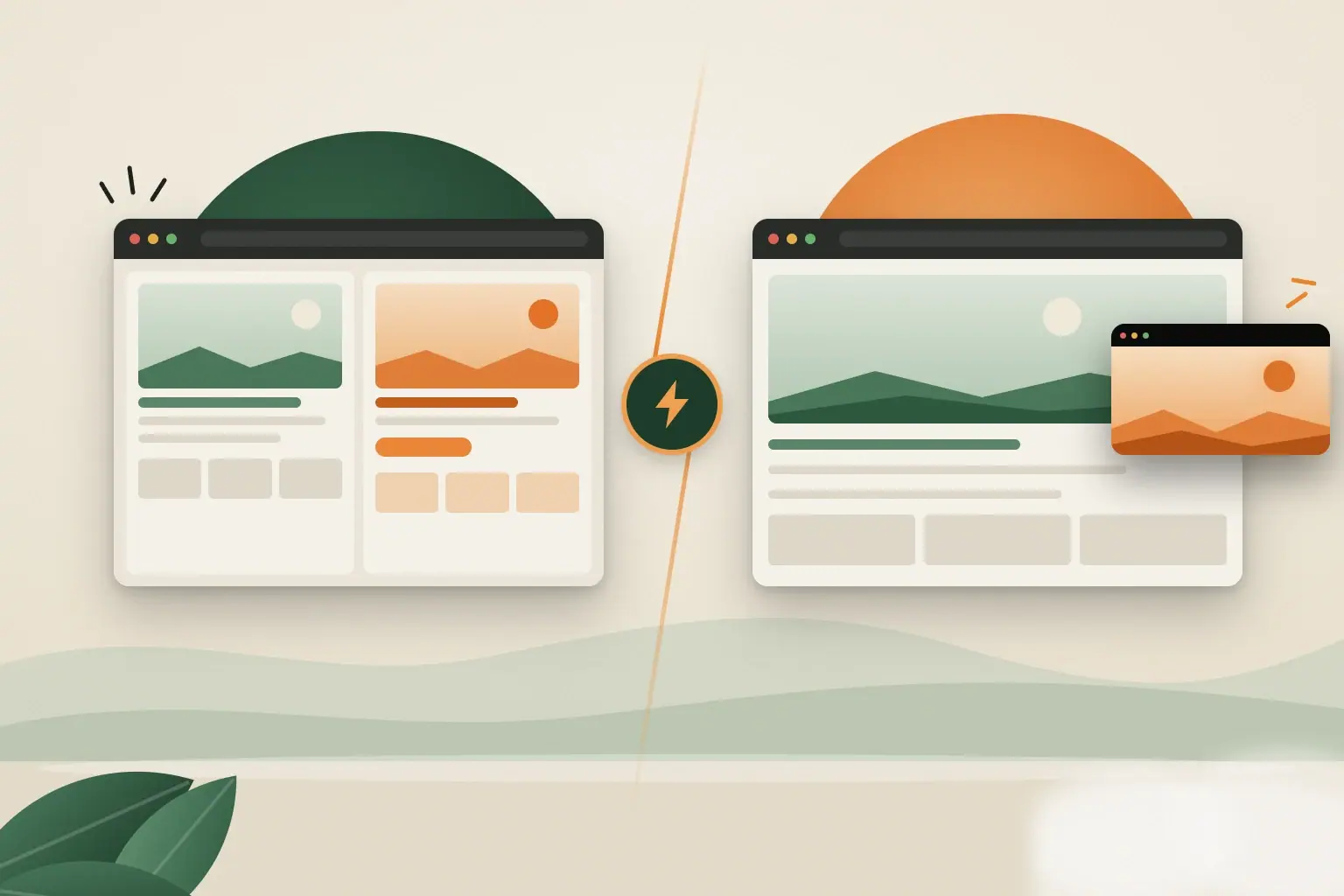
The fix is to stop going to the tab and let the tab come to you. Chrome gives you two ways to do that. Split View puts two pages side by side so you can work in both. Tabbies keeps a live view of one tab in a small bubble on whatever page you are on. The short rule: if you need to use both pages, split the window; if you only need to watch one, use a bubble.
Start on the tab you want to watch
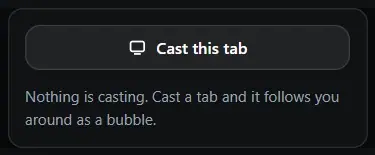
Add Tabbies from the Chrome Web Store, then open the page you keep checking: a build, a dashboard, a support queue, a live score. Click the Tabbies icon and choose Cast this tab.
That is the whole setup. There is no screen-share picker and no "Sharing this tab" bar across the page. Tabbies uses Chrome's tab capture API, which only starts after you click, so nothing is ever captured behind your back.
If you had tabs open before installing, reload them once so the bubble can appear there.
Get on with your work, and glance when you need to
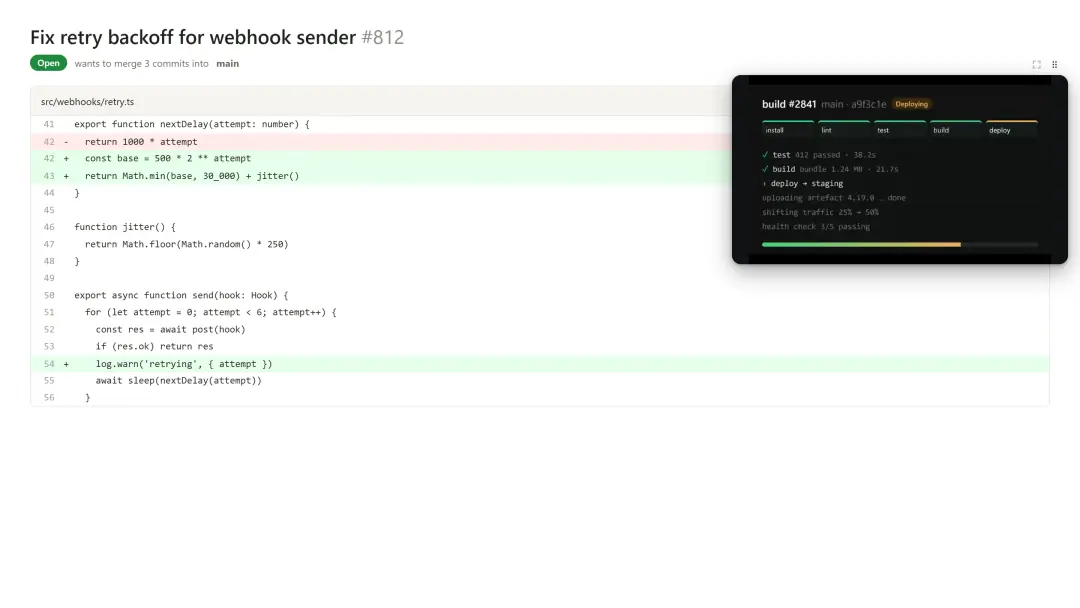
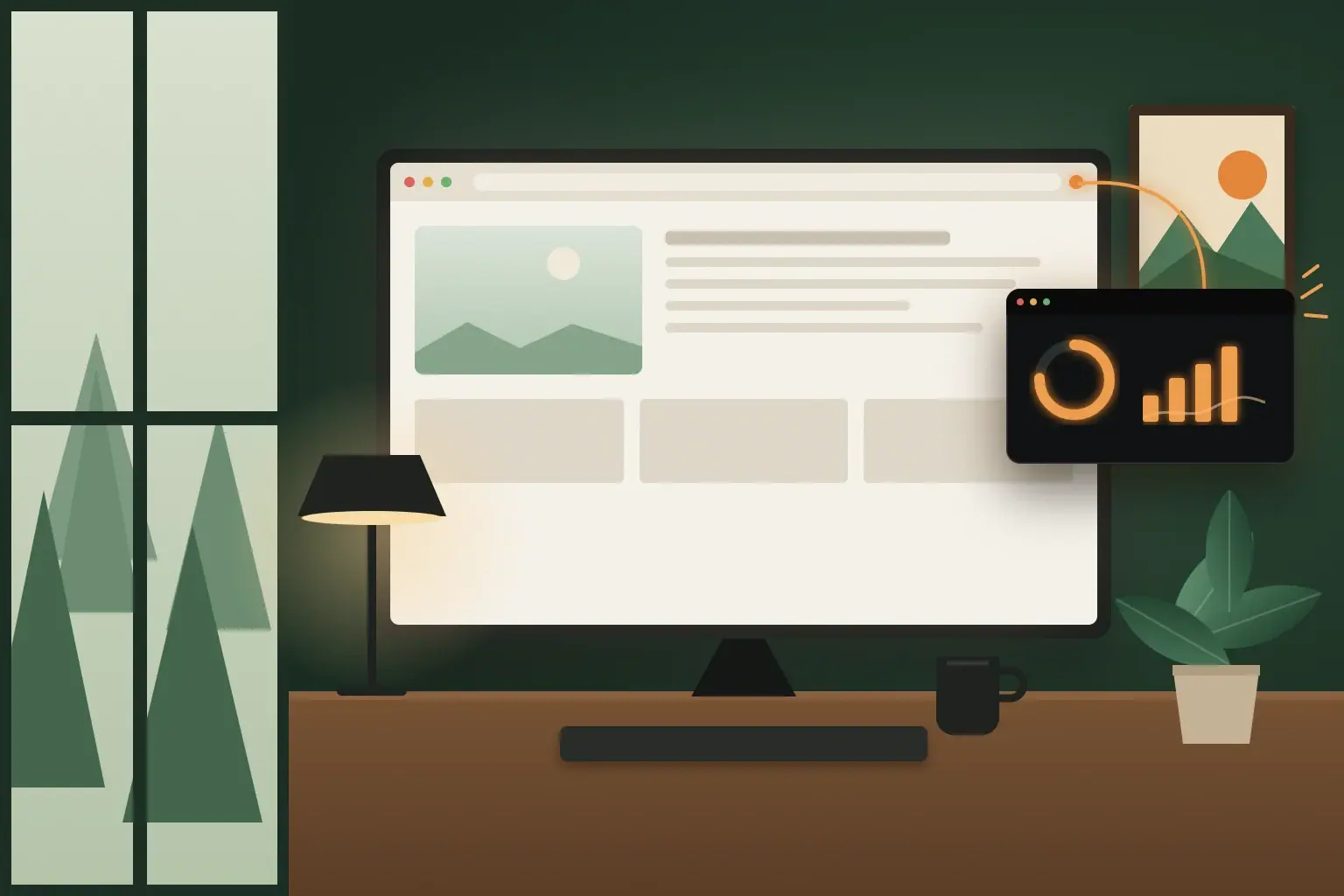
Switch to any other web page. The tab you cast follows you as a live bubble, so a failed step or a finished deploy shows up in the corner of your eye instead of on a tab you have to go and open. Drag the bubble to either edge and pull its corner to resize it; it remembers where you left it.
A few things I've found make it work well:
- Watch for colour and movement, not small text. A progress bar, a red or green status, or a chart line reads fine at bubble size. A dense log doesn't; make the bubble bigger or keep logs in their own tab.
- Dock it away from where you work. On a page you read left to right, the right edge keeps it out of the way.
- It is a window, not a remote. The bubble shows the tab; it doesn't control it. When something needs a click, switch to the tab. That is usually the one trip worth making.
Cast a build, switch to the docs, and watch it finish. Recorded on sample pages.
Watch more than one when you need to
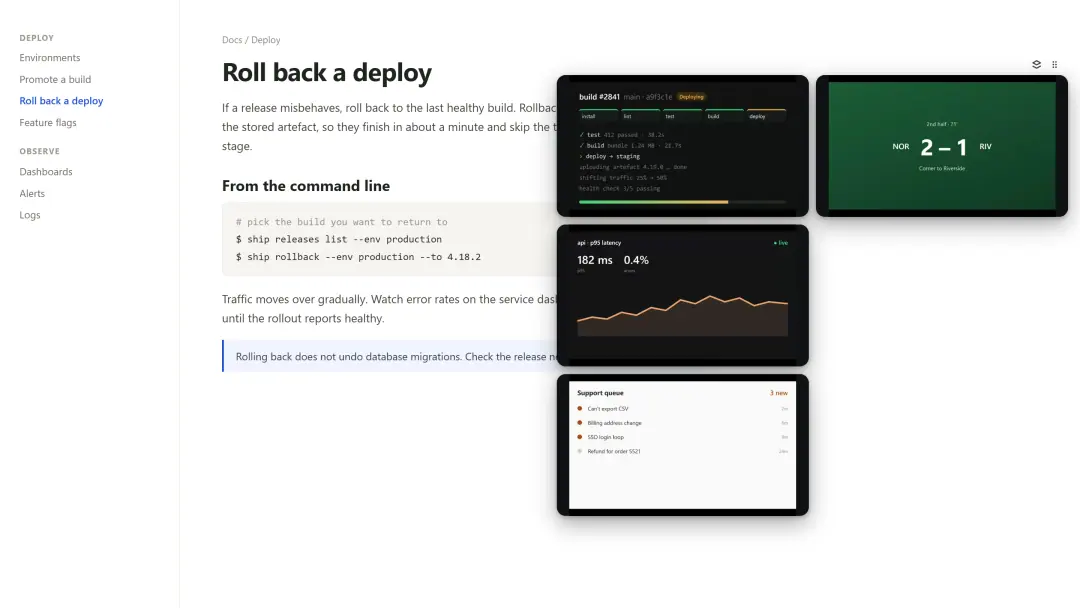
Cast a second tab and the bubbles stack like cards; open the stack into a grid to see them side by side. A build next to its error-rate dashboard is a good pair. In practice, two or three is the sweet spot. Beyond that, each view gets too small to read at a glance.
It stays light, and it stays on your computer
Your computer
- The tab you castCaptured by Chrome after your click
- Scaled to the bubbleOnly the pixels the bubble shows
- The page you're onDrawn in a bubble, live
Servers, accounts, analytics: none
Keeping a tab in view sounds expensive, but Tabbies is built not to be. Each bubble is encoded at the size it is drawn, not the size of the original tab, which cuts the pixels it has to process by about 90%. In the launch tests that came to about 1.5 ms of work per frame and around 20 kbps for a mostly still page. Tabs you can't see stop streaming until you come back to them.
Nothing leaves your machine. There is no account, no server and no analytics, and the source is on GitHub if you want to check.
A few limits worth knowing: the bubble is video only, with no sound; Chrome doesn't let extensions draw on the New Tab page or on its own chrome:// pages; and a page's own pop-up dialogs can sit on top of it.
When Split View is the better choice
Chrome Split View Two pages, half the window each. Both stay usable.
A Tabbies bubble Your page keeps the window. The build rides along, live.
If you need to work in both pages at once, such as copying from a reference into a form or comparing two documents, use Split View. It arrived in Chrome 145, shows two pages in one window, and lets you scroll the inactive page without switching to it. Right-click a tab and choose Add tab to new split view, or press Shift+Alt+N (Cmd+Option+N on a Mac).
The cost is space: each page gets half the window. That is fair when both pages need your hands, and a lot to give up for a page you only glance at.
For a side-by-side comparison, read Chrome Split View vs Tab-in-Tab: Which Should You Use?
Try it on the tab you checked most today
- Add Tabbies to ChromeFree, from the Chrome Web Store
- Cast this tabOn the page you keep checking
- Watch the bubbleOn any other page you open
You probably already know which tab it is. Add Tabbies to Chrome, cast it once, and see how many trips you save. It's free, and you can watch the demo first.